Install Visual Studio Code
Contents
Install Visual Studio Code#
Though you can use any code editor you prefer, we highly recommend vscode. Here are some useful links for using vscode:
Step 1: Download and install#
Download and install vscode on your local machine from here.
Step 2: Sign in with Github account#
Sign in will give you benefit of syncing all settings and extensions across all platform.
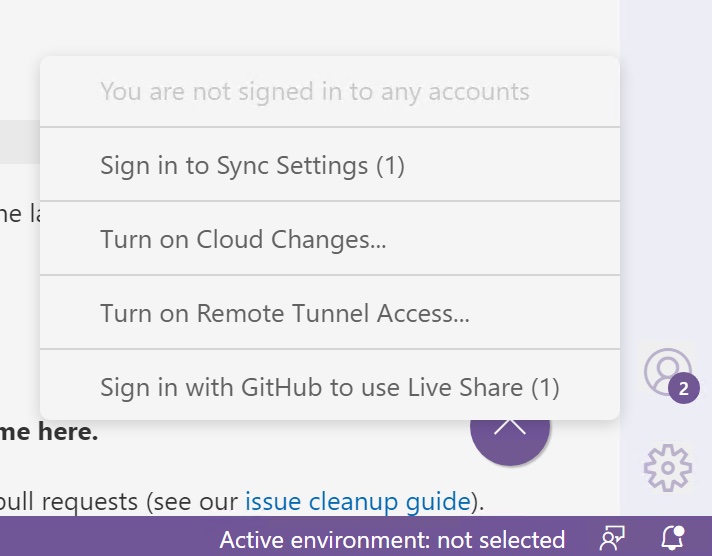
Click the human icon at the lower left corner
Select Sign in to Sync Settings
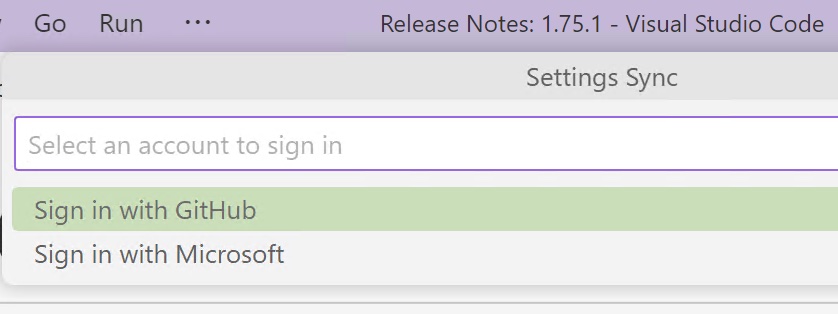
Then select Sign in with Github, and your default browser will be opened
Sign in to Github from the popped up browser window.
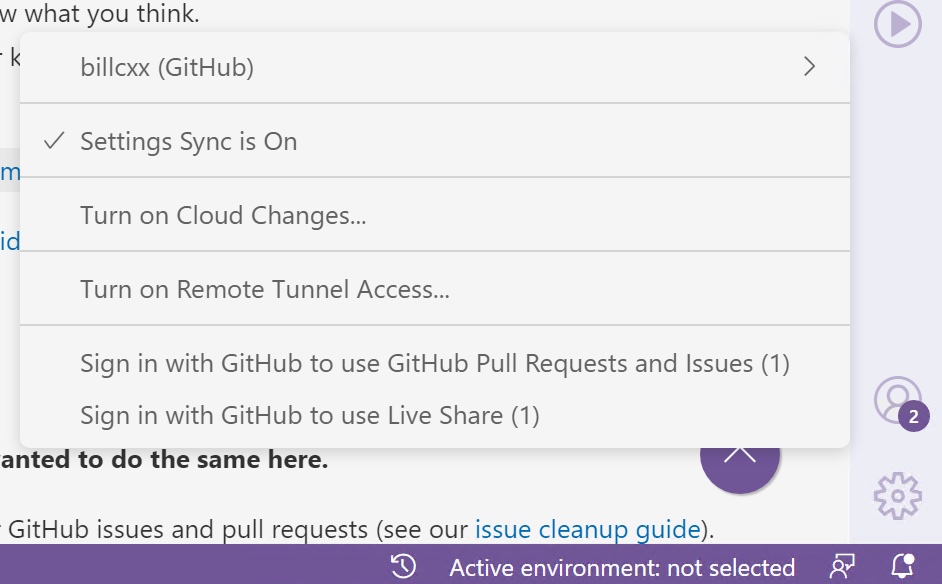
If you have successfully signed in, then clicking the human icon will show your github account username, and you can close the browser window.
Step 3: Install extensions#
One huge benefit of using vscode is its large extension base. Here is a list of the extensions that we will use:
Remote - SSH (Id: ms-vscode-remote.remote-ssh): useful for remote ssh connection
Remote - SSH: Editing Configuration Files(Id: ms-vscode-remote.remote-ssh-edit): used when editing ssh config file
You don’t need to install any extension for now, because we can install recommended extension all at once in future step.